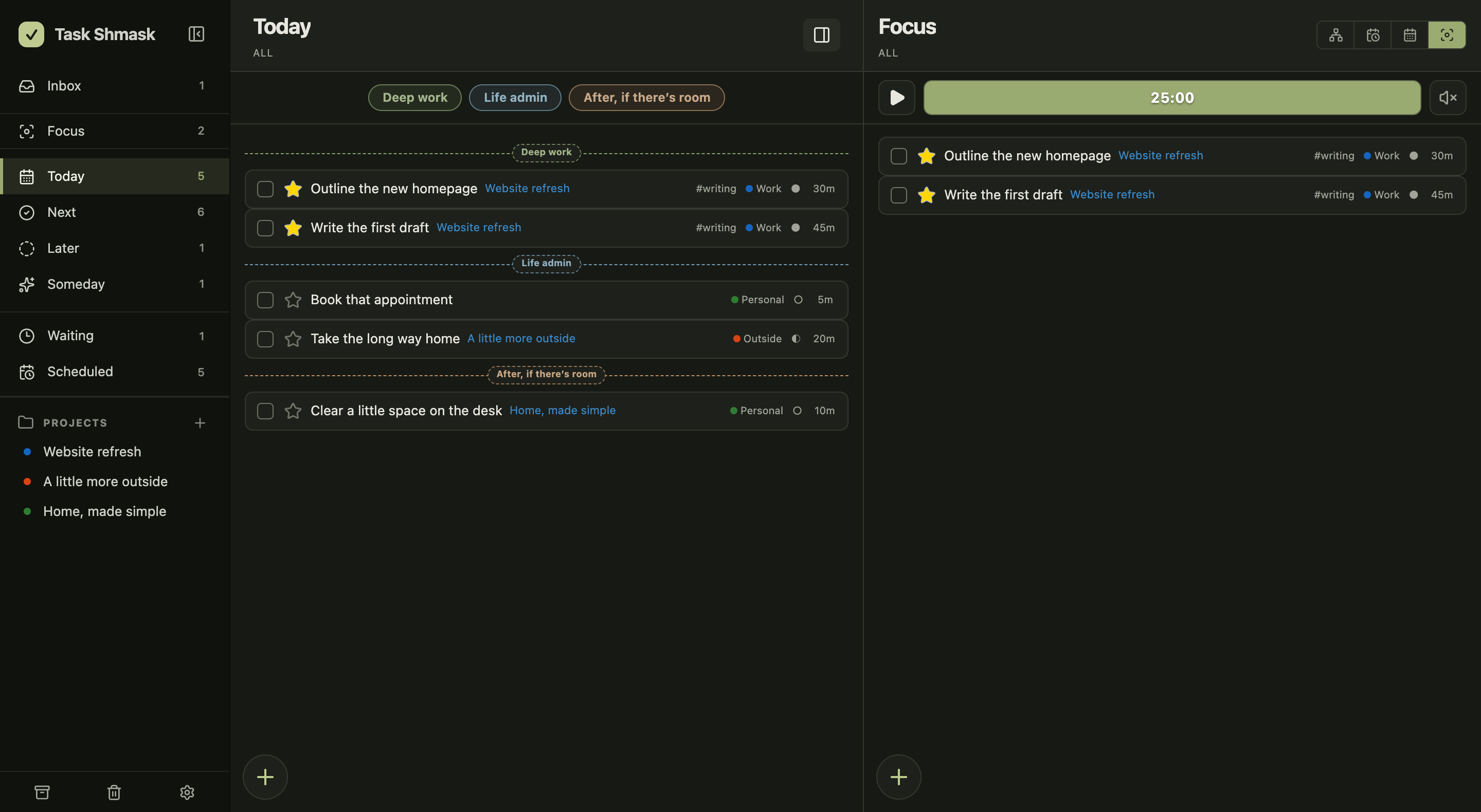
Choose today’s work and keep your priorities in sight.
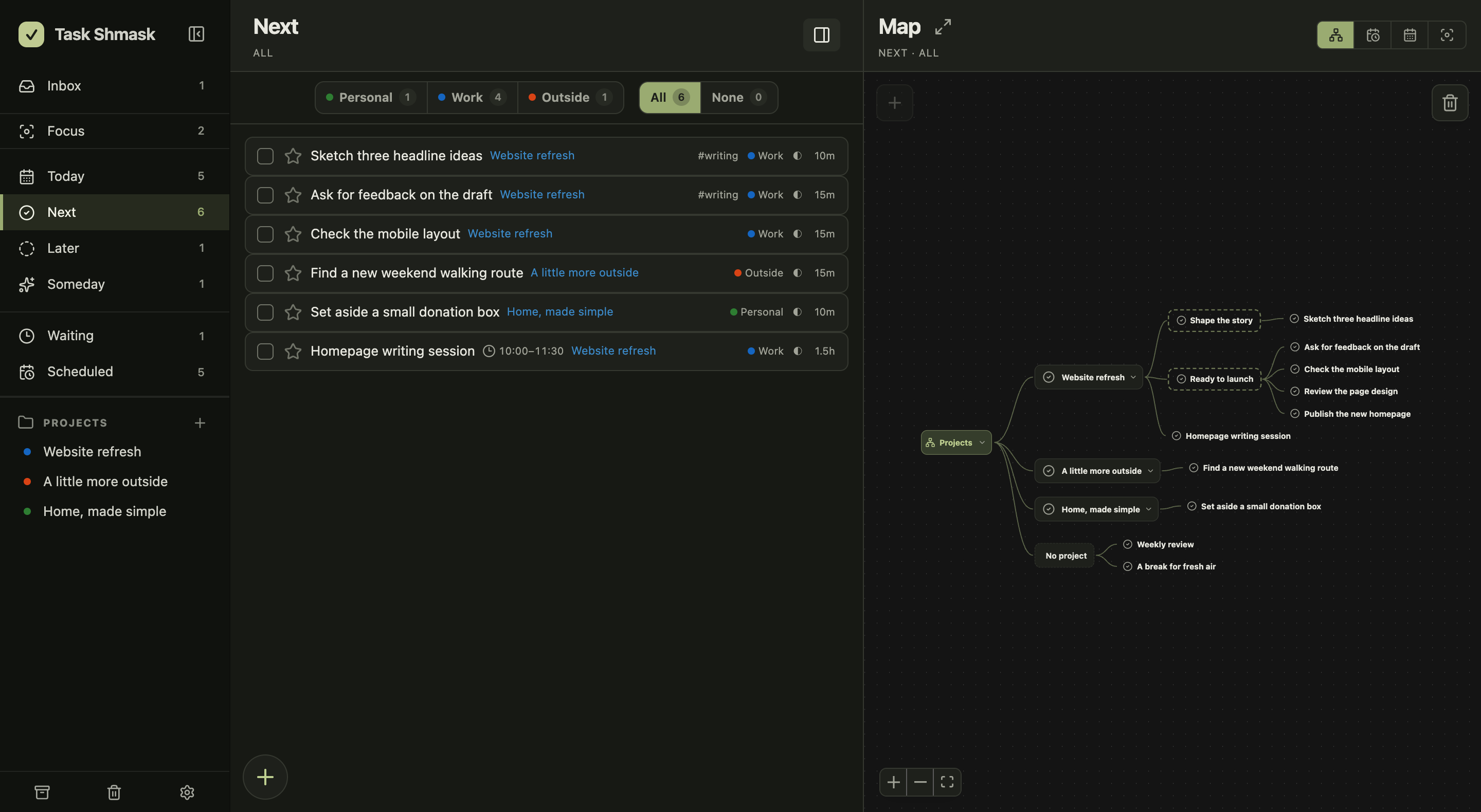
Next actions, with a project map.
See how each next action fits into the project.
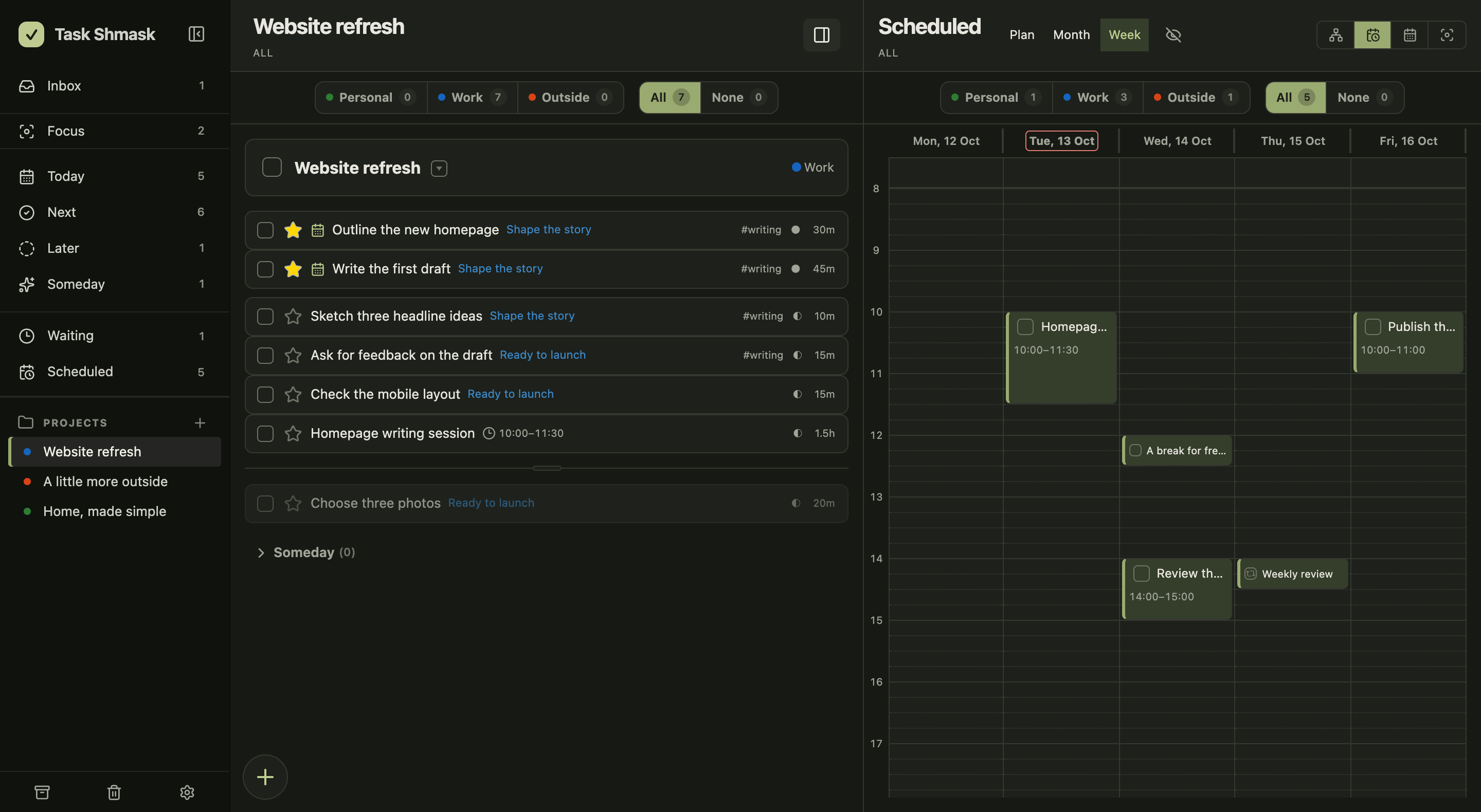
Project tasks, with a weekly calendar.
Give project work a time slot, not just a deadline.
For work & personal projects
More than a longer to-do list. A way to see where each task fits.
Shape the project on a map. Choose a few actions for Today. Give them time on the calendar. The same tasks connect the plan to the work.
01 / Editable project map
Edit the project. Not a separate diagram.
Break a project into groups and next actions on the map. Rename, regroup, or change a task’s status there—it’s the same task you see in your lists.
02 / Today & Focus
Plan a day. Not your entire backlog.
Bring tasks from work and personal projects into Today. Group them into your own sets, star your priorities, and keep a short Focus list and timer alongside.
03 / Calendar & recurring tasks
Reserve time. Not just a due date.
Drag tasks into weekly time slots and resize them as plans change. Use recurring tasks for routines and the month view to see what’s ahead.
04 / Search & filters
Have 15 minutes? Find a task that fits.
Narrow the list by duration, energy, project, tag, or deadline. Find a short writing task for a gap between meetings without scanning the whole backlog.
05 / Logbook & daily notes
Review the work. Not just what’s left.
See completed tasks grouped by day and add a note about what worked. Checked something off by mistake? Restore it from Logbook.
Small details. Less friction.
NQuick capture & shortcuts
Drag, drop & regroup
Custom areas & Today sets
Hands-on starter tutorial
From an idea to an action
Capture first. Decide what to do next.
GTD-inspired lists, with a hands-on starter tutorial. You don’t need to learn a method before you begin.
01
Capture it.
Put loose thoughts in Inbox. You don’t have to organize them the moment they appear.
Inbox
02
Give it a place.
Choose a concrete next action. Connect it to a project and an area. Defer what isn’t ready.
Projects / Next
03
Do what matters.
Make a short plan for Today. Star your priorities. Start the timer and give one thing your attention.
Today / Focus
04
Review. Reset.
Look back in Logbook. Review what’s waiting, revisit your ideas, and choose the next small step.
Logbook
Not everything is for now.
Later for deferred steps. / Waiting for someone else. / Someday for possibilities.
Offline & data
Local by default. Yours to export.
No account required to start. No connection required after the first load.
Works offline. Starts without an account.
After the first load, the app works without a connection. Your working data stays in this browser unless you choose to sign in and sync.
Optional sync across devices.
Where cloud sync is enabled, sign in to use your tasks on another device. Offline changes sync when you reconnect with the app open.
Export a copy. Restore when you need it.
Download a JSON backup of your tasks and projects. Keep a copy before clearing browser storage: local data can be removed, and sync also carries deletions.
Before you start
What to expect.
Who is Task Shmask for?
People planning their own work and personal projects. It’s especially useful when a long task list hides the project’s structure or makes it hard to choose today’s work. This is a personal task manager, not a team assignment or reporting tool.
Do I need an account?
No. The app starts with a local workspace and an editable, hands-on tutorial. Signing in is only needed if you choose optional cloud sync.
Can I really work offline?
Yes, once you’ve opened the app online and its application shell has been cached. Tasks are saved in your browser’s local database. Export backups regularly: clearing browser data can remove that local workspace.
How does syncing between devices work?
If the app has Dexie Cloud configured, sign in from Settings on the device with your up-to-date data first. Then connect an empty workspace on your other device with the same email. Sync runs while the app is open; theme, timer, and other device settings stay local. Deletions sync too, so keep backups.
Can I use it on my phone or desktop?
Use the web app in a modern browser on desktop or mobile. You can install it where your browser supports web app installation. Native installers and App Store downloads aren’t available here.
Can I interact with the screenshots?
The gallery shows the actual app with sample tasks, not an interactive demo. Switch between the three scenarios or select a feature image to enlarge it. This website doesn’t run the app or access your tasks.
Do I have to know GTD already?
Not at all. A new workspace starts with practice tasks that guide you through capture, planning, Focus, projects, scheduling, and backups. They’re ordinary editable tasks, not a setup course you have to finish before doing real work.
Start with one project
See the plan. Choose the next action.
Capture an idea, break it into actions, and choose what to work on today.